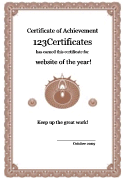
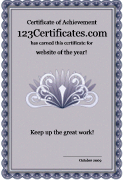
Make and print fancy award certificates
Write over and fill in the fields below and choose a style from the bottom drop down menu. Then, click make it.
Title of Certificate:
Student's Name:
Sub-Title:
Student's Achievement:
Final Praise:
Your Name:
Date:
Class:
Pick a Border:
Border1
Border2_bluegray
Border2_gold
Border2_gray
Border2_green
Border2_purple
Border2_red
Border3_blue
Border3_gold
Border3_green
Border3_olive
Border3_purple
Border3_teal
Border4_brown
Border4_maroon
Border4_olive
Border4_pink
Border4_purple
Border4_red
Border4_teal
Border5_blue
Border5_brown
Border5_gold
Border5_green
Border5_olive
Border5_purple
Border5_red
Border5_teal
Border6_blue
Border6_brown
Border6_gold
Border6_olive
Border6_purple
Border6_red
Border6_teal
Border7_blue
Border7_bronze
Border7_brown
Border7_green
Border7_maroon
Border7_purple
Border8_blue
Border8_brown
Border8_green
Border8_olive
Border8_purple
Border8_silver
Border8_teal
If headers and/or other page text are printing on your certificate
, click on file and page properties. You can then turn off headers and footers.
If background and text print on separate pages or no text prints:
Once you've made your certificate and before you hit print, go to 'file' and then 'page settings' or 'print preview'. Check the margins and decrease the bottom margin and top if you need to. If the margins are too big, your printer will think there won't be enough printable area, and the text might get pushed to the second page or not print at all.