
Reading Certificate Maker
Click any text to edit it. Use the controls to move elements, change fonts, add your own images, and customize the layout. Your certificate will be ready to print or download when you're done.
Create reading achievement certificates for book challenges, AR point goals, reading milestones, and literacy celebrations. Perfect for encouraging young readers, recognizing reading accomplishments, and making reading fun and rewarding. Browse all reading certificate templates to find your favorite design.
How to use the certificate maker:
2025 update:
- Hold Ctrl to select multiple items and drag or edit them together.
- Use the keyboard arrows to make fine position adjustments.
- You can drag a text box from anywhere, but there is also a drag icon at the top left for convenience.
Step 1: Choose your paper size and layout. You can change these later, but it will save you time to set them up first. If you are adding images, you may want to add those early as well (see Step 4).
Step 2: Edit the text. Add all your text first, then make font and layout adjustments. You can delete text boxes or add new ones as needed.
Step 3: Choose your font. Selecting a text box and changing the font will affect only that box. With nothing selected, the font change applies to all text on the certificate.
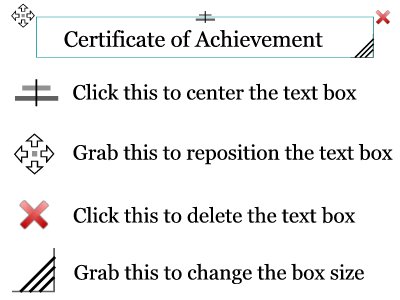
Step 4: Edit the layout. The illustration below shows the controls available on text boxes and images. You can drag, resize, and center items within the frame.
Step 5: Print! Click the print button when you are happy with the result. A print preview will open so you can check everything looks right before printing.
For best results, use Chrome or Firefox.
There are 2 export options: Print and Download PNG. The certificate maker is designed for printing and will produce a high quality result. The PNG download is a lower quality image suitable for emailing for review or reference — it is not intended to be awarded to the recipient.
Nothing happens when I click 'Download PNG': The download opens in a new browser tab, which is often blocked by pop-up blockers. You should see a warning at the top or bottom of your browser. Allow pop-ups for 123 Certificates and the download will work from that point forward.
Borders load one at a time to keep file sizes manageable and quality high (each border is around 200–250kB). When you switch to a new border or color, it may take a few seconds to appear. Once loaded, flipping through borders is smooth.
If you are not sure which certificate you want, it is faster to browse the category preview page (link above) than to click through all the borders in the maker.
The certificate border is wrong: If you are following an old link or bookmark, please go to the category preview page and click the template you want. That will load the correct border. If it still doesn't look right, email me and I will fix it as soon as I can.
The border isn't changing: Borders load one at a time and the next few are preloaded in the background, but it can take a couple of seconds. See 'Changing the Border' above for more details.
The application seems frozen: Try clicking the layout or paper size buttons a couple of times to reset. The maker is designed to be responsive, but slow connections or server load can occasionally cause issues. This appears to be most common on some mobile devices.
Can I save my work?: Unfortunately, no. The site is designed for quick, easy printing and does not use accounts or saved data. Once you close the browser or navigate away, your work will be lost and you will need to start again.
For any other issues, please email me at admin @ 123certificates.com and I will do my best to help as quickly as possible.

You are free to use any resource from this site as an end user. You may not redistribute, copy, modify, transfer, transmit, repackage, charge for or sell any of the materials from this site. 123Certificates.com reserves the right to terminate or make changes to this agreement for any reason and without notice.
Copyright © 2006 – 2026 123 Certificates | Restrictions | Privacy | About | Sitemap | Contact